
1. Check current mailbox storage
Before you start deleting, it is important to know how much space is used and which folders consume the most quota.
Via Outlook on the Web (OWA) or New Outlook
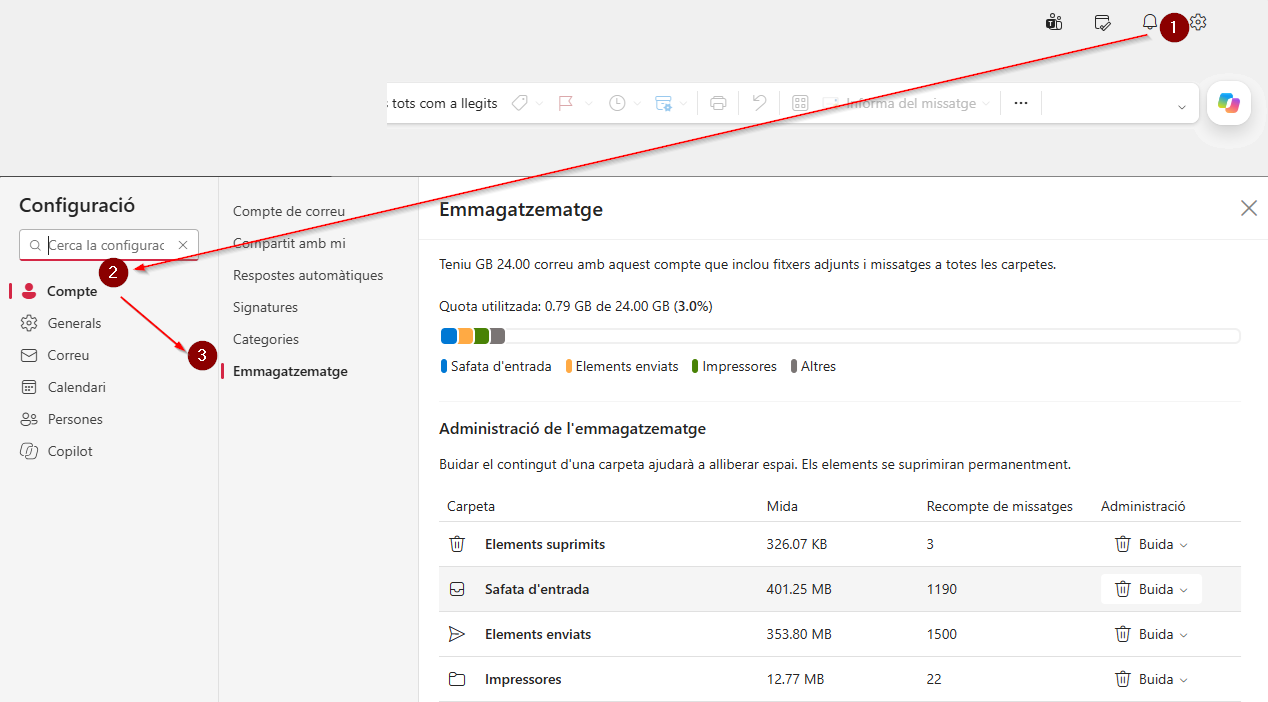
1. From Outlook, go to the settings section (the gear icon at the top right).
2. Account section.
3. Storage, this section allows you to review how your email storage is distributed, lets you know which folders take up the most space, and also allows you to directly empty certain folders such as the Deleted Items folder (which continues to take up space until emptied) as well as Junk Email.
2. Free up space and clean up the mailbox
Once you have identified how much space is being used and which folders consume the most quota, you can start cleaning up content.
A. Emptying residual folders
Deleted Items and Junk Email: Deleted emails continue to take up space until the folder is emptied. From the Storage section, you can expand the Management tab and select All. From the main email page: right-click on the Deleted Items folder and click Empty folder. You can do the same with the Junk Email folder so it does not take up space.
B. Search and deletion of large messages
From the main email page.
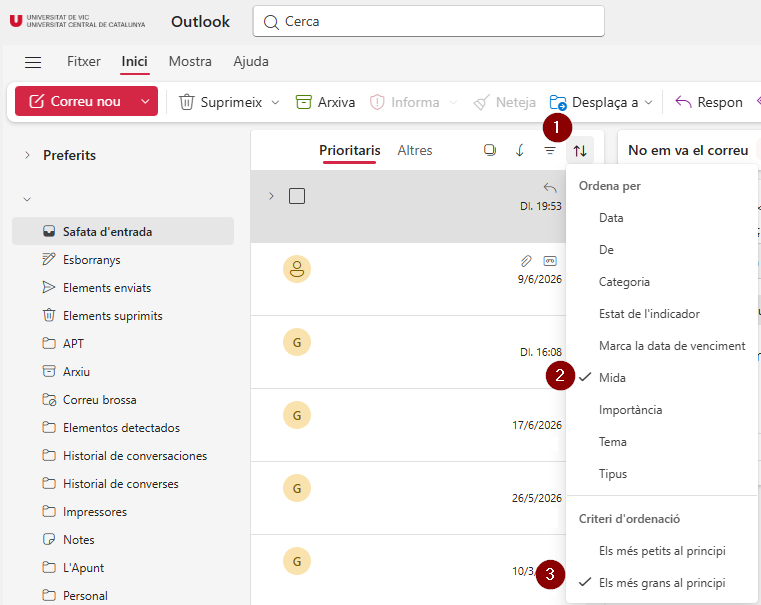
1. Go to your inbox and click on the Sort by option.
2. Select by Size.
3. Set the Sort order to Largest on top.
This allows you to sort your inbox by email size so you can review the largest ones and delete them. You can also apply this to other folders, such as Sent Items.
3. Exporting and downloading a backup in a PST file
Saving emails in a PST file is the best option to keep them without using up server space. You can open it whenever you want, perform searches, and recover specific messages.
Direct export to .pst files is only available in the Outlook desktop application for Windows. Currently, neither the Outlook web application nor the macOS/mobile versions support creating and exporting .pst files.
To do this, follow these steps:
1. Open New Outlook.
2. At the top right, click File and then Open & Export.
3. Follow the wizard steps to select the mailbox or specific folders you want to export.
How to view the PST file once created
Once the creation of the .pst file is confirmed, you can safely delete those emails from your online Outlook mailbox to free up space immediately.
To view archived content at any time from the same computer: go to File > Open & Export > Open Outlook Data File.
The file will appear in the left side panel of Outlook as an independent local mailbox.
4. Resources
Microsoft Resources
- Export emails to PST: Export or back up email, contacts, and calendar to an Outlook PST file
- Import a PST file into Outlook: Import email, contacts, and calendar from an Outlook PST file
- Automatically archive older emails: AutoArchive older items in Outlook to preserve and manage old emails
- More Outlook guides and help: Microsoft Outlook Support Center