
To configure access to the Eduroam Wi-Fi network on your computer, you must have a Wi-Fi network card compatible with the WPA protected wireless network system and you also need an Internet connection to download the configuration profile (you do not need to be physically at UVic facilities). To download the installer you can:
- Use another WiFi network.
- Use a wired network connection.
- Share your smartphone’s mobile data connection.
1. Open your browser and go to https://cat.eduroam.org/?idp=943. The portal will automatically detect your operating system. Click “Download your eduroam installer” and the download will start automatically.
2. Check that python3 is installed. Open a terminal and run “python3 –version”. If it returns a version number, it is correctly installed; otherwise install it with:
“sudo apt update
sudo apt install python3”.
3. Using the same terminal, navigate to the folder where you downloaded the file. If it is in Downloads, run:
“cd ~/Downloads”
4. Run the file using:
“python3 eduroam-linux-UUdV-UCdC-UVic.py”
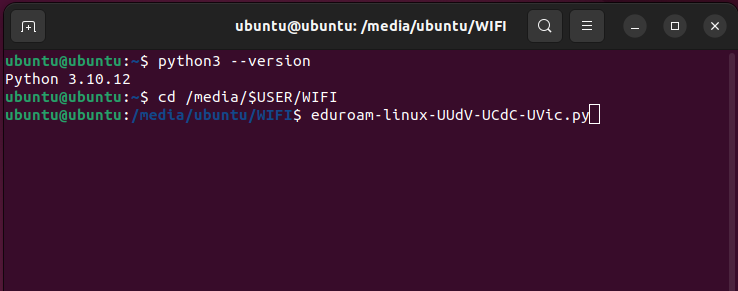
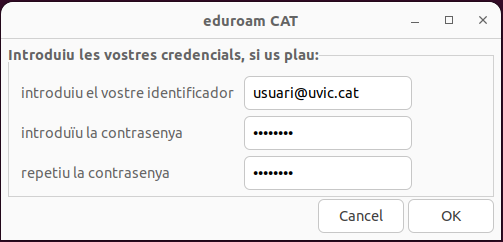
5. Once executed, the configuration assistant will open. When prompted, enter your credentials:
username: your UVic-UCC email address (@uvic.cat, @teknos.cat or @umedicina.cat)
password: your Campus Virtual password.
If you experience any issues during the configuration process, you can contact the ICT Area (Building B, room B125) or open a URespon ticket.
Note
The password used is the same one you use to access the Virtual Campus. Therefore, if you change it, you must also update it in your device’s Wi-Fi settings.